Up to 100 MB for PDF and up to 25 MB for DOC, DOCX, RTF, PPT, PPTX, JPEG, PNG, JFIF, XLS, XLSX or TXT
0
Forms filled
0
Forms signed
0
Forms sent
Last updated on
May 25, 2026
Try these PDF tools
Edit PDF
Quickly edit and annotate PDFs online.
Start now
Sign
eSign documents from anywhere.
Start now
Request signatures
Send a document for eSignature.
Start now
Share
Instantly send PDFs for review and editing.
Start now
Merge
Combine multiple PDFs into one.
Start now
Rearrange
Rearrange pages in a PDF document.
Start now
Compress
Compress PDFs to reduce their size.
Start now
Convert
Convert PDFs into Word, Excel, JPG, or PPT files and vice versa.
Start now
Edit, manage, and save documents in your preferred format
Convert documents with ease
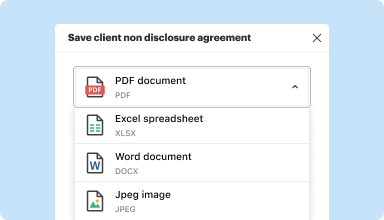
Convert text documents (.docx), spreadsheets (.xlsx), images (.jpeg), and presentations (.pptx) into editable PDFs (.pdf) and vice versa.
Start with any popular format
You can upload documents in PDF, DOC/DOCX, RTF, JPEG, PNG, and TXT formats and start editing them immediately or convert them to other formats.
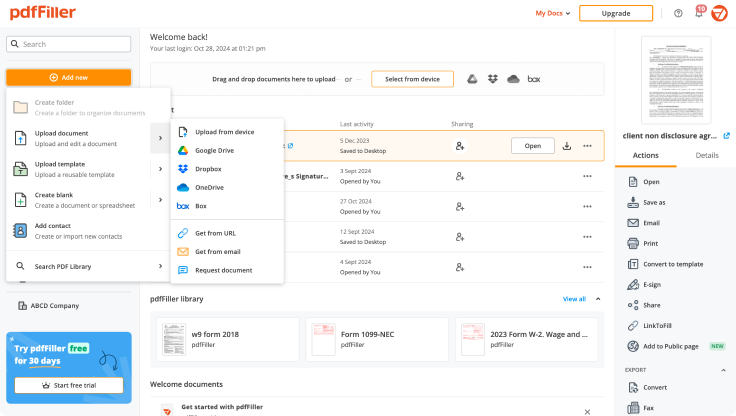
Store converted documents anywhere
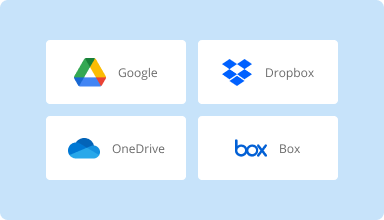
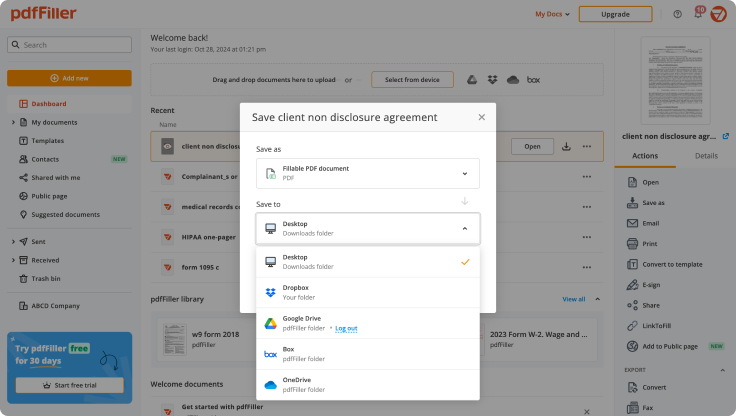
Select the necessary format and download your file to your device or export it to your cloud storage. pdfFiller supports Google Drive, Box, Dropbox, and OneDrive.
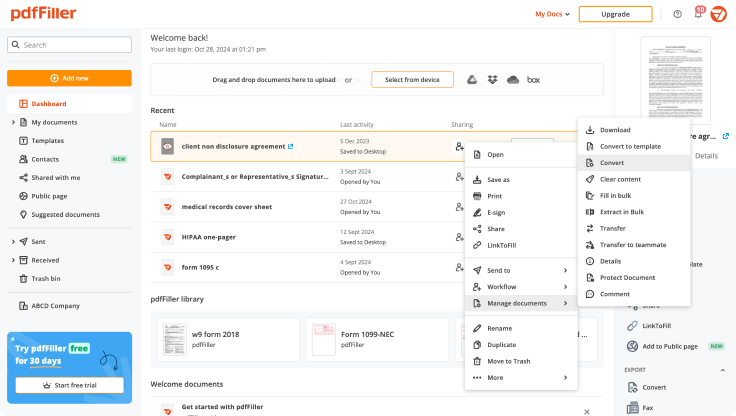
Convert documents in batches
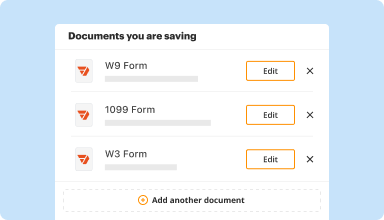
Bundle multiple documents into a single package and convert them all in one go—no need to process files individually.
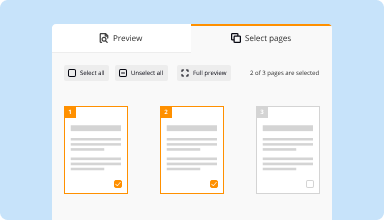
Preview and manage pages
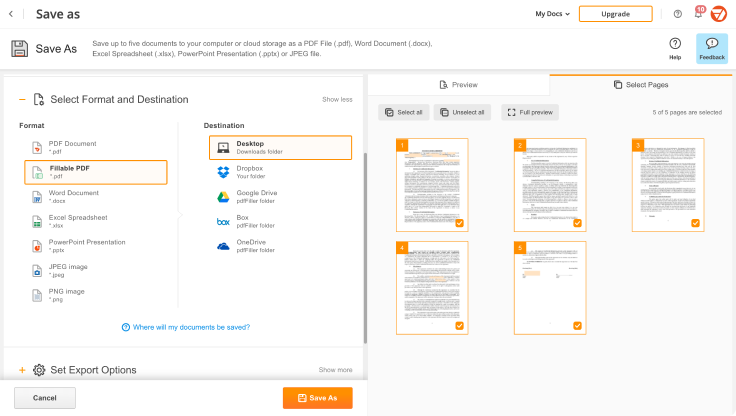
Review the documents you are about to convert and exclude the pages you don’t need. This way, you can compress your files without losing quality.
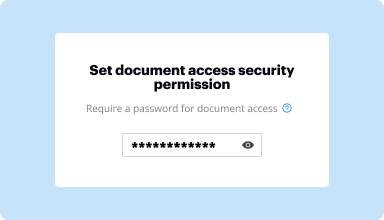
Protect converted documents
Safeguard your sensitive information while converting documents. Set up a password and lock your document to prevent unauthorized access.
How to quickly convert and compress your PDF?
Upload your document
Upload a document from your device, cloud storage, email, or URL.
Use the converter tool
Select your document and click Convert
.
Select format and destination
Decide on the file type and where you want to save the converted document—on your device or in your cloud storage.
Manage pages and additional settings
Once everything is set, you can access advanced settings to compress a document by excluding unnecessary pages, set passwords, and select other options.
Top-rated PDF software recognized for its ease of use, powerful features, and impeccable support
Customer trust by the numbers
64M+
users worldwide
4.6/5
average user rating
4M
PDFs edited per month
9 min
average to create and edit a PDF
Join 64+ million people using paperless workflows to drive productivity and cut costs
Initially somewhat confusing, but overall excellent. Offers excellent resources and makes it easier to do most business functions. I do love the import and fill ability.
Leatrice J
2015-10-23
Need to make this able to handle more than 150 pages, or at least have the document splitter handle up to 500 pages. I manage PDF files which average 300 pages....
Chris S
2019-12-10
What do you like best?
able to add text boxes and add information
What do you dislike?
hard to get font size changed and boxes lined up
Recommendations to others considering the product:
very easy to use if you need to edit or add to current pdfs
What problems are you solving with the product? What benefits have you realized?
making insurance certificates for our own insureds so they don't have to wait for us. I can see who they make certificates for and add them to their account
Steve Berger
2019-01-02
Highly will recommend to others. Easy to use, and I just enjoy the fact that I can edit the text box to where I want to put it and being able to change the size of the box. There are ,of course, more features, but this is feature by far has been the one I been using the most.
David L
2024-12-02
Great, this time so far. I used the program a little over a week ago but my documents were messed up because I was not told I had to pay first in order to save or print the document. I had to create it all again. It was the same one as this now, 821 ssa form. It took me hours to get as far as I had.
Brauni C
2023-03-07
Its amazing tool for everyone that needs a fast and quick way to manage PDF files, its really helpful! And I needed contact support team and they were nice! I do recommend PdfFiller!
Jose C
2023-03-01
I am very satisfied with only being…
I am very satisfied with only being signed in for a hour. Easy to navigate through and the pop-up suggestion are very helpful information on how to work the site.
Terry Griffin
2022-02-20
So far PDFFiller is meeting my current needs and saving me time and money. I am pretty sure there are other features that I could take advantage of if I actually knew what they were. I welcome a webinar to learn more.
Dr. Liezette A
2021-12-10
so far astonishing. i created a fillable govt form locally=TEDIOUS.. uploaded it.. filled it out.. bad tab order :(... was able to change the tab order VERY easily.. send to email and boom.. awsome.. so far
Bob M
2020-08-14
Print to PDF Feature
The Print to PDF feature allows you to easily convert documents into PDF format with just a few clicks. This functionality is ideal for both personal and professional use, ensuring your files maintain their original formatting and are easily shareable.
Key Features
Simple one-click conversion
Maintains original layout and formatting
Compatible with multiple file types
No additional software required
Easy file sharing and storage
Potential Use Cases and Benefits
Save web articles and documents for offline reading
Create professional-looking reports and proposals
Archive important information securely
Share files without losing quality
Prepare materials for printing or distribution
By utilizing the Print to PDF feature, you can resolve the common issue of file compatibility and formatting loss. This tool ensures that your documents look the same on any device, streamlining your workflow and enhancing communication with others.
Get documents done
from anywhere
Create, edit, and share PDFs even on the go. The pdfFiller app equips you with every tool you need to manage documents on your mobile device. Try it now on iOS or Android!
How to Use the Print to PDF Feature in pdfFiller
The Print to PDF feature in pdfFiller allows you to easily convert any document or form into a PDF file. Follow these simple steps to use this feature:
01
Open the document or form you want to convert to PDF in pdfFiller.
02
Click on the 'Print' button located in the top right corner of the screen.
03
In the print settings window, select 'Print to PDF' as the printer option.
04
Choose the desired page range or select 'All' to convert the entire document.
05
Click on the 'Print' button to start the conversion process.
06
A 'Save As' window will appear, allowing you to choose the location on your computer where you want to save the PDF file.
07
Enter a name for the PDF file and click 'Save'.
08
The document will be converted to PDF and saved to the selected location on your computer.
09
You can now access the PDF file and share it with others or print it as needed.
Using the Print to PDF feature in pdfFiller is a quick and convenient way to convert your documents into a universally compatible format. Give it a try and experience the ease of creating PDF files with pdfFiller!
For pdfFiller’s FAQs
Below is a list of the most common customer questions. If you can’t find an answer to your question, please don’t hesitate to reach out to us.
Scroll down then check to make sure Microsoft Print to PDF is enabled. If it is enabled, and you still don't see it in your list of available printers, try this: Press Windows key + R, type: control then hit Enter. Open Devices and Printers and click Add printer.
How do I get Microsoft Print to PDF?
Step 1: Hit “Ctrl + P” on your keyboard or click on “File” and then select “Print”.
Step 2: This will open the print window. Click on the drop-down menu under “Printer” and from the options presented select “Microsoft Print to PDF”.
How do I add PDF printer to Windows 10?
Open the “Start” menu and in the search tab and type: Turn Windows features on or off.
Make sure to check the feature of “Microsoft Print to PDF”.
Hit the “OK” button and drop out. Remember to restart at the end.
Does Windows 7 have Microsoft Print to PDF?
Microsoft print to PDF is native option available in Windows 10. By default, it allows users to print any document in PDF format. Unlike macOS or Linus, print to PDF was never so easy in Windows OS. Specially in Windows 7 or 8 this option was not there.