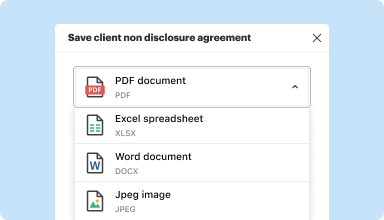
Bis zu 100 MB für PDF und bis zu 25 MB für DOC, DOCX, RTF, PPT, PPTX, JPEG, PNG, JFIF, XLS, XLSX oder TXT
0
Ausgefüllte Formulare
0
Signierte Formulare
0
Gesendete Formulare
Zuletzt aktualisiert am
Sep 21, 2025
Probieren Sie diese PDF-Tools
PDF bearbeiten
PDFs schnell online bearbeiten und kommentieren.
Jetzt starten
Unterschreiben
Dokumente von überall elektronisch unterschreiben.
Jetzt starten
Unterschriften anfordern
Ein Dokument zur elektronischen Unterschrift senden.
Jetzt starten
Teilen
PDFs sofort zur Überprüfung und Bearbeitung senden.
Jetzt starten
Zusammenführen
Mehrere PDFs zu einer Datei zusammenführen.
Jetzt starten
Neu anordnen
Seiten in einem PDF-Dokument neu anordnen.
Jetzt starten
Komprimieren
PDFs komprimieren, um ihre Größe zu reduzieren.
Jetzt starten
Konvertieren
PDFs in Word-, Excel-, JPG- oder PPT-Dateien konvertieren und umgekehrt.
Jetzt starten
Edit, manage, and save documents in your preferred format
Convert documents with ease
Convert text documents (.docx), spreadsheets (.xlsx), images (.jpeg), and presentations (.pptx) into editable PDFs (.pdf) and vice versa.
Start with any popular format
You can upload documents in PDF, DOC/DOCX, RTF, JPEG, PNG, and TXT formats and start editing them immediately or convert them to other formats.
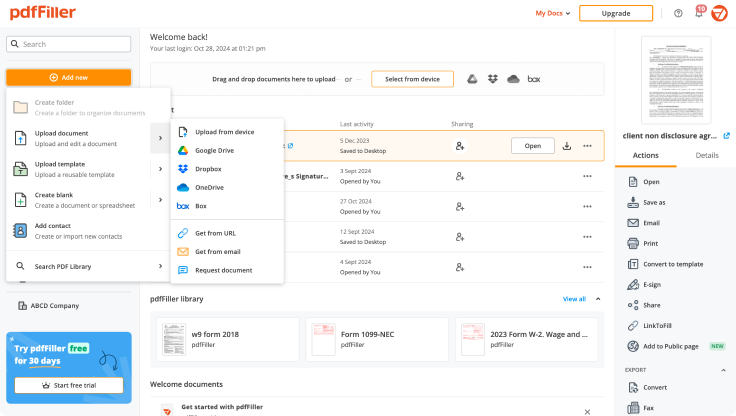
Store converted documents anywhere
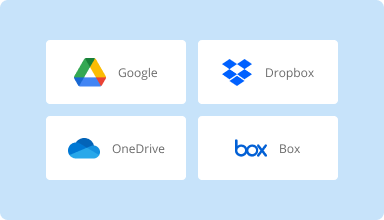
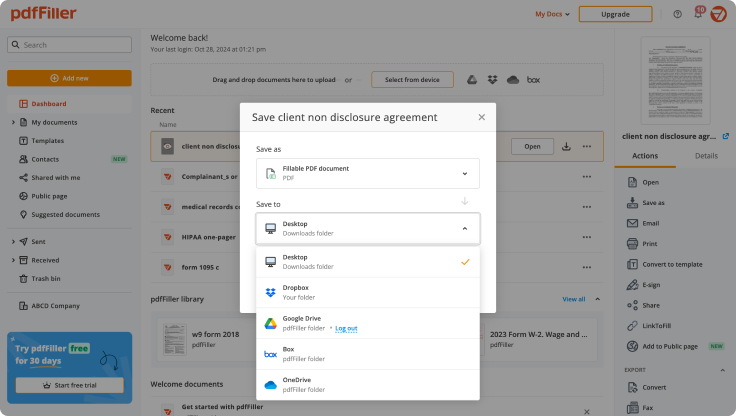
Select the necessary format and download your file to your device or export it to your cloud storage. pdfFiller supports Google Drive, Box, Dropbox, and OneDrive.
Convert documents in batches
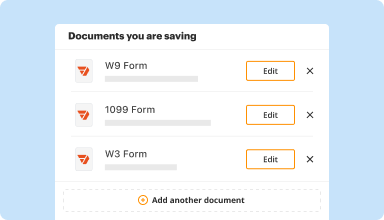
Bundle multiple documents into a single package and convert them all in one go—no need to process files individually.
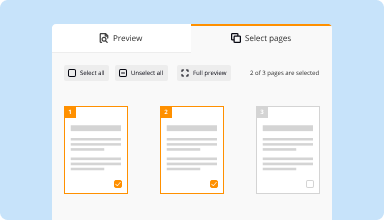
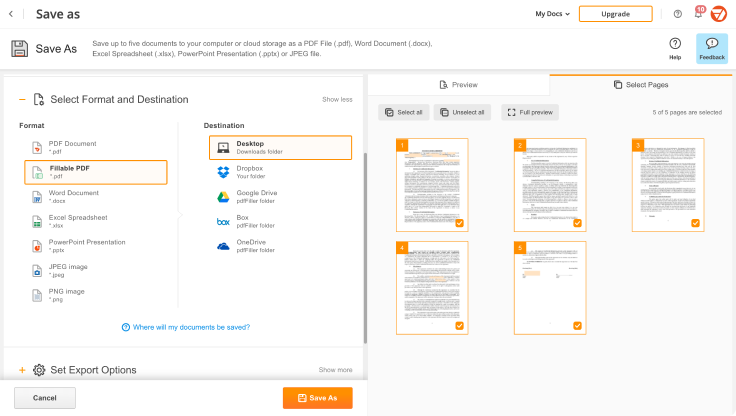
Preview and manage pages
Review the documents you are about to convert and exclude the pages you don’t need. This way, you can compress your files without losing quality.
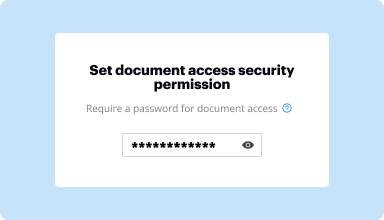
Protect converted documents
Safeguard your sensitive information while converting documents. Set up a password and lock your document to prevent unauthorized access.
How to quickly convert and compress your PDF?
Upload your document
Upload a document from your device, cloud storage, email, or URL.
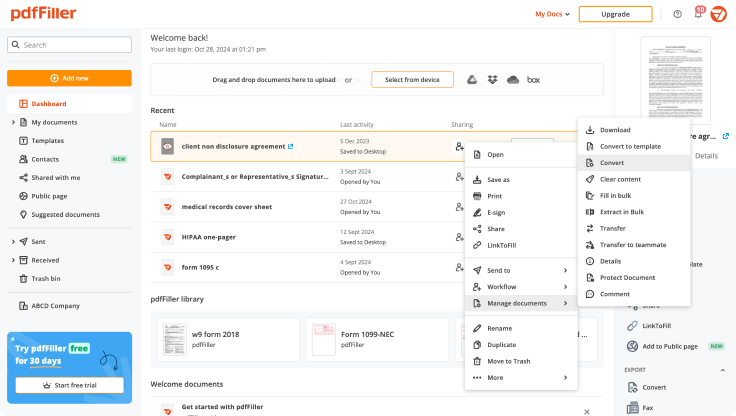
Use the converter tool
Select your document and click Convert
.
Select format and destination
Decide on the file type and where you want to save the converted document—on your device or in your cloud storage.
Manage pages and additional settings
Once everything is set, you can access advanced settings to compress a document by excluding unnecessary pages, set passwords, and select other options.
Bestbewertete PDF-Software, ausgezeichnet für ihre Benutzerfreundlichkeit, leistungsstarken Funktionen und tadellosen Support
Kundenvertrauen in Zahlen
64M+
Weltweit Benutzer
4.6/5
Durchschnittliche Benutzerbewertung
4M
PDFs pro Monat bearbeitet
9 min
Durchschnittliche Zeit, um ein PDF zu erstellen und zu bearbeiten
Schließen Sie sich 64+ Millionen Menschen an, die papierlose Workflows nutzen, um die Produktivität zu steigern und Kosten zu senken
Initially somewhat confusing, but overall excellent. Offers excellent resources and makes it easier to do most business functions. I do love the import and fill ability.
Leatrice J
2015-10-23
Need to make this able to handle more than 150 pages, or at least have the document splitter handle up to 500 pages. I manage PDF files which average 300 pages....
Chris S
2019-12-10
What do you like best?
able to add text boxes and add information
What do you dislike?
hard to get font size changed and boxes lined up
Recommendations to others considering the product:
very easy to use if you need to edit or add to current pdfs
What problems are you solving with the product? What benefits have you realized?
making insurance certificates for our own insureds so they don't have to wait for us. I can see who they make certificates for and add them to their account
Steve Berger
2019-01-02
Highly will recommend to others. Easy to use, and I just enjoy the fact that I can edit the text box to where I want to put it and being able to change the size of the box. There are ,of course, more features, but this is feature by far has been the one I been using the most.
David L
2024-12-02
Great, this time so far. I used the program a little over a week ago but my documents were messed up because I was not told I had to pay first in order to save or print the document. I had to create it all again. It was the same one as this now, 821 ssa form. It took me hours to get as far as I had.
Brauni C
2023-03-07
Its amazing tool for everyone that needs a fast and quick way to manage PDF files, its really helpful! And I needed contact support team and they were nice! I do recommend PdfFiller!
Jose C
2023-03-01
I am very satisfied with only being…
I am very satisfied with only being signed in for a hour. Easy to navigate through and the pop-up suggestion are very helpful information on how to work the site.
Terry Griffin
2022-02-20
So far PDFFiller is meeting my current needs and saving me time and money. I am pretty sure there are other features that I could take advantage of if I actually knew what they were. I welcome a webinar to learn more.
Dr. Liezette A
2021-12-10
so far astonishing. i created a fillable govt form locally=TEDIOUS.. uploaded it.. filled it out.. bad tab order :(... was able to change the tab order VERY easily.. send to email and boom.. awsome.. so far
Bob M
2020-08-14
Drucken in PDF-Funktion
Die Funktion "Drucken als PDF" ermöglicht es Ihnen, Dokumente mit nur wenigen Klicks einfach in das PDF-Format zu konvertieren. Diese Funktionalität ist ideal für sowohl persönliche als auch berufliche Nutzung und stellt sicher, dass Ihre Dateien ihr ursprüngliches Format beibehalten und leicht teilbar sind.
Hauptmerkmale
Einfache Konvertierung mit einem Klick
Beibehaltung des ursprünglichen Layouts und Formats
Kompatibel mit mehreren Dateitypen
Keine zusätzliche Software erforderlich
Einfache Dateifreigabe und -speicherung
Mögliche Anwendungsfälle und Vorteile
Webartikel und Dokumente für das Offline-Lesen speichern
Professionell aussehende Berichte und Vorschläge erstellen
Wichtige Informationen sicher archivieren
Dateien teilen, ohne die Qualität zu verlieren
Materialien für den Druck oder die Verteilung vorbereiten
Durch die Nutzung der Funktion "Drucken als PDF" können Sie das häufige Problem der Dateikompatibilität und des Formatverlusts lösen. Dieses Tool stellt sicher, dass Ihre Dokumente auf jedem Gerät gleich aussehen, optimiert Ihren Arbeitsablauf und verbessert die Kommunikation mit anderen.
Erhalten Sie Dokumente gemacht
von überall
Erstellen, bearbeiten und teilen Sie PDF-Dokumente auf dem Sprung. Die pdfFiller-App stattet Sie mit allen Werkzeugen aus, die Sie benötigen, um Dokumente auf Ihrem mobilen Gerät zu verwalten. Probieren Sie es jetzt auf iOS oder Android!
So verwenden Sie die Druck-zu-PDF-Funktion in pdfFiller
Die Funktion "Drucken als PDF" in pdfFiller ermöglicht es Ihnen, jedes Dokument oder Formular einfach in eine PDF-Datei zu konvertieren. Befolgen Sie diese einfachen Schritte, um diese Funktion zu nutzen:
01
Öffnen Sie das Dokument oder Formular, das Sie in PDF konvertieren möchten, in pdfFiller.
02
Klicken Sie auf die Schaltfläche "Drucken" in der oberen rechten Ecke des Bildschirms.
03
Wählen Sie im Druckeinstellungsfenster "Drucken als PDF" als Druckeroption aus.
04
Wählen Sie den gewünschten Seitenbereich oder wählen Sie "Alle", um das gesamte Dokument zu konvertieren.
05
Klicken Sie auf die Schaltfläche "Drucken", um den Konvertierungsprozess zu starten.
06
Ein Fenster "Speichern unter" wird angezeigt, in dem Sie den Speicherort auf Ihrem Computer auswählen können, an dem Sie die PDF-Datei speichern möchten.
07
Geben Sie einen Namen für die PDF-Datei ein und klicken Sie auf "Speichern".
08
Das Dokument wird in PDF konvertiert und an dem ausgewählten Speicherort auf Ihrem Computer gespeichert.
09
Sie können jetzt auf die PDF-Datei zugreifen und sie mit anderen teilen oder nach Bedarf drucken.
Die Verwendung der Funktion "Drucken als PDF" in pdfFiller ist eine schnelle und bequeme Möglichkeit, Ihre Dokumente in ein universell kompatibles Format zu konvertieren. Probieren Sie es aus und erleben Sie die Leichtigkeit, PDF-Dateien mit pdfFiller zu erstellen!
FAQs über pdfFiller
Unten finden Sie eine Liste der häufigsten Kundenfragen. Wenn Sie keine Antwort auf Ihre Frage finden, zögern Sie nicht, uns zu kontaktieren.
Scrollen Sie nach unten und überprüfen Sie, ob Microsoft Print to PDF aktiviert ist. Wenn es aktiviert ist und Sie es immer noch nicht in Ihrer Liste der verfügbaren Drucker sehen, versuchen Sie Folgendes: Drücken Sie die Windows-Taste + R, geben Sie ein: control und drücken Sie die Eingabetaste. Öffnen Sie Geräte und Drucker und klicken Sie auf Drucker hinzufügen.
Wie bekomme ich Microsoft Print to PDF?
Schritt 1: Drücken Sie „Strg + P“ auf Ihrer Tastatur oder klicken Sie auf „Datei“ und wählen Sie dann „Drucken“.
Schritt 2: Dies öffnet das Druckfenster. Klicken Sie auf das Dropdown-Menü unter „Drucker“ und wählen Sie aus den angezeigten Optionen „Microsoft Print to PDF“.
Wie füge ich einen PDF-Drucker zu Windows 10 hinzu?
Öffnen Sie das „Start“-Menü und geben Sie im Suchfeld ein: Windows-Funktionen ein- oder ausschalten.
Stellen Sie sicher, dass die Funktion „Microsoft Print to PDF“ aktiviert ist.
Klicken Sie auf die Schaltfläche „OK“ und beenden Sie. Denken Sie daran, am Ende neu zu starten.
Hat Windows 7 Microsoft Print to PDF?
Microsoft Print to PDF ist eine native Option, die in Windows 10 verfügbar ist. Standardmäßig ermöglicht es Benutzern, jedes Dokument im PDF-Format zu drucken. Im Gegensatz zu macOS oder Linux war das Drucken in PDF unter Windows OS nie so einfach. Besonders in Windows 7 oder 8 war diese Option nicht vorhanden.